
How to Chat With Your Documents: Personal AI Knowledge Base
You have, somewhere on your laptop, a graveyard of PDFs. A folder of contracts you signed and never reread. Three years of performance reviews. A tax document from 2023 you’re pretty sure you’ll need again. Forty saved research papers for a project you started and then didn’t finish. Every one of those files is technically searchable by filename, and none of it is actually useful, because “useful” requires you to remember which file has the answer before you can go get it.
That’s the actual problem “chat with your documents” solves. Not “AI is smart,” which is how most of these tools market themselves. The real thing on offer is much smaller and much more useful: you shouldn’t have to remember where information lives in order to use it. A widely cited 2012 McKinsey Global Institute study — still the number people reach for because nobody has run a bigger one since — found that knowledge workers were spending an average of 1.8 hours a day, 9.3 hours a week, just searching for and gathering information. That was well before “AI” meant anything beyond spam filters. The problem never went away. What’s changed is that there’s now a genuinely good, mostly free way to fix your own small corner of it, in about fifteen minutes.
This is a practical guide to doing exactly that: what a personal AI knowledge base actually is underneath the marketing, the handful of real ways to build one depending on how much you have and how private it needs to be, and a concrete walkthrough for the two most useful starting points. Most of it requires no code. It will also tell you plainly where these systems fall down, because they do, and knowing that in advance is what separates someone who uses one well from someone who gets burned by trusting it too much.
Quick answer: A personal AI knowledge base is retrieval-augmented generation pointed at your own files instead of a company’s. The AI searches the documents you give it and answers from those, rather than guessing from what it memorized during training. You can build a basic one in minutes by uploading files to the Projects feature in Claude or ChatGPT, get a purpose-built version with Google’s free Gemini Notebook, fold it into a notes app you already use like Obsidian or Notion, or, if privacy is non-negotiable, run the whole thing locally with a free tool like AnythingLLM so nothing ever leaves your machine.
Here’s what you’ll walk away knowing:
- A personal AI knowledge base is the same idea as enterprise-grade RAG, just pointed at your own files instead of a company’s — not a new technology, a smaller application of one you may already understand.
- There isn’t one correct tool. The right one depends on three things: how many documents you have, how long you need the setup to stick around, and how sensitive the content is.
- A working version is free and takes under fifteen minutes to get running, no installation required.
- The fully private version, where nothing ever leaves your computer, is also free. It just takes more setup and, depending on the model you choose, decent hardware.
- These systems fail in specific, predictable ways once your files get numerous or dense enough. This guide flags exactly where, so you know when to double-check an answer instead of trusting it outright.
What a personal AI knowledge base actually is
Strip away the branding and every tool in this article runs the same three-step loop: search your documents for what’s relevant, hand that material to the AI along with your question, and let it write an answer grounded in what it just read. That loop has a name — retrieval-augmented generation, or RAG — and it’s the same mechanism behind enterprise chatbots that answer from a company’s internal wiki. The only thing that changes when you build a personal version is the source: instead of a company’s policy documents, it’s your lease, your old emails, your research folder, your notes.
This matters because it tells you what these tools are and aren’t. They aren’t search engines with better vocabulary — a search engine finds files that contain your keywords; a personal knowledge base finds passages that answer your question, even if the wording doesn’t match at all, and then writes you a synthesized answer instead of a list of links. They also aren’t a smarter version of the underlying AI model. A general-purpose assistant answering from memory is like a well-read person doing their best from what they can recall. The same assistant with your documents attached is that same person, now allowed to actually open the file and check before answering. The intelligence didn’t change. What it’s allowed to look at did.
The other thing worth understanding up front: a good implementation shows its work. Ask a well-built personal knowledge base a question and a decent answer comes with a pointer back to the specific document, and often the specific passage, it drew from. That’s not a minor feature. It’s the difference between an answer you have to take on faith and one you can verify in ten seconds by clicking through to the source.
Why this isn’t just a smarter search bar
It’s tempting to file this whole category under “Ctrl+F, but fancier.” That undersells what’s actually different, and understanding the gap is what tells you when to trust an answer and when to double-check it.
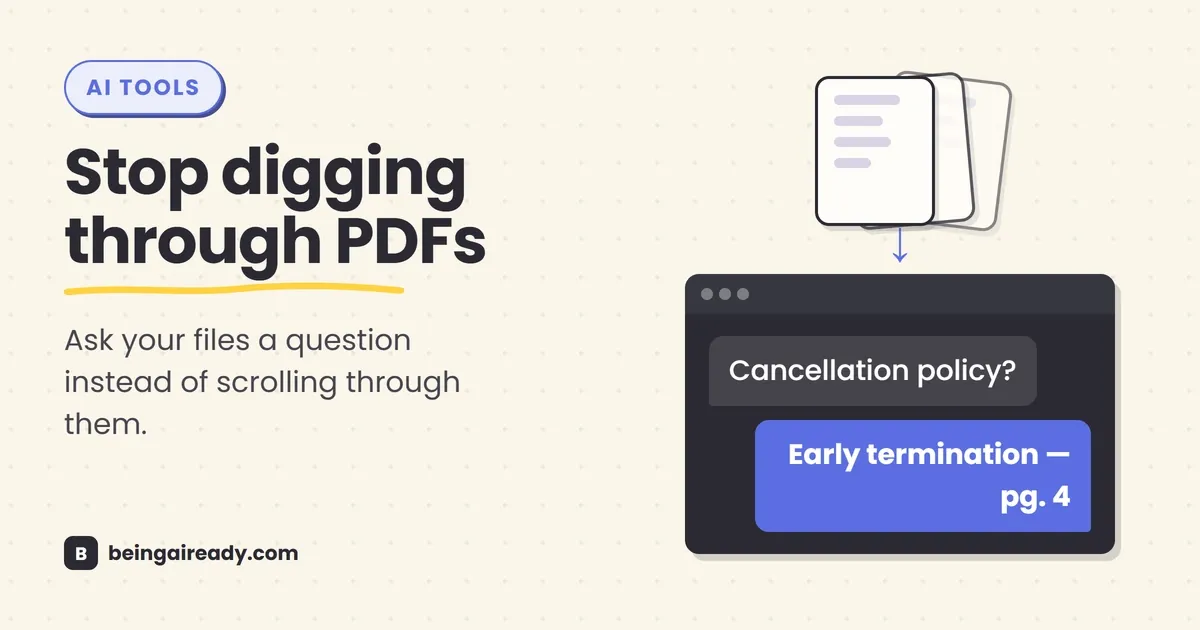
Keyword search finds files containing the words you typed. Ask a folder of documents to find “cancellation policy” with plain search and you’ll only get hits on files that use that exact phrase. If your lease actually calls it “early termination,” a keyword search comes back empty, even though the answer is sitting right there on page four. You didn’t fail to find it because it doesn’t exist. You failed because you guessed the wrong words.
A RAG-based tool works differently, because it doesn’t search text, it searches meaning. Both your question and every chunk of every document get converted into embeddings — numerical representations of what a passage is about, not just which words it contains — and the system compares those instead of comparing literal strings. Ask “can I get my money back if I leave early” and it can still surface the early-termination clause, because the underlying idea matches even though not a single word does. You don’t need to understand the math behind embeddings to use any of the tools in this guide. You just need to know that’s the reason they can answer a question phrased nothing like the source document, which a search bar never could.
This is also exactly why answer quality depends on how the document gets broken into chunks before anything gets searched, and why a system can still miss the right passage even when it’s a good one — a topic worth flagging now because it resurfaces later, in the section on where these tools get it wrong.
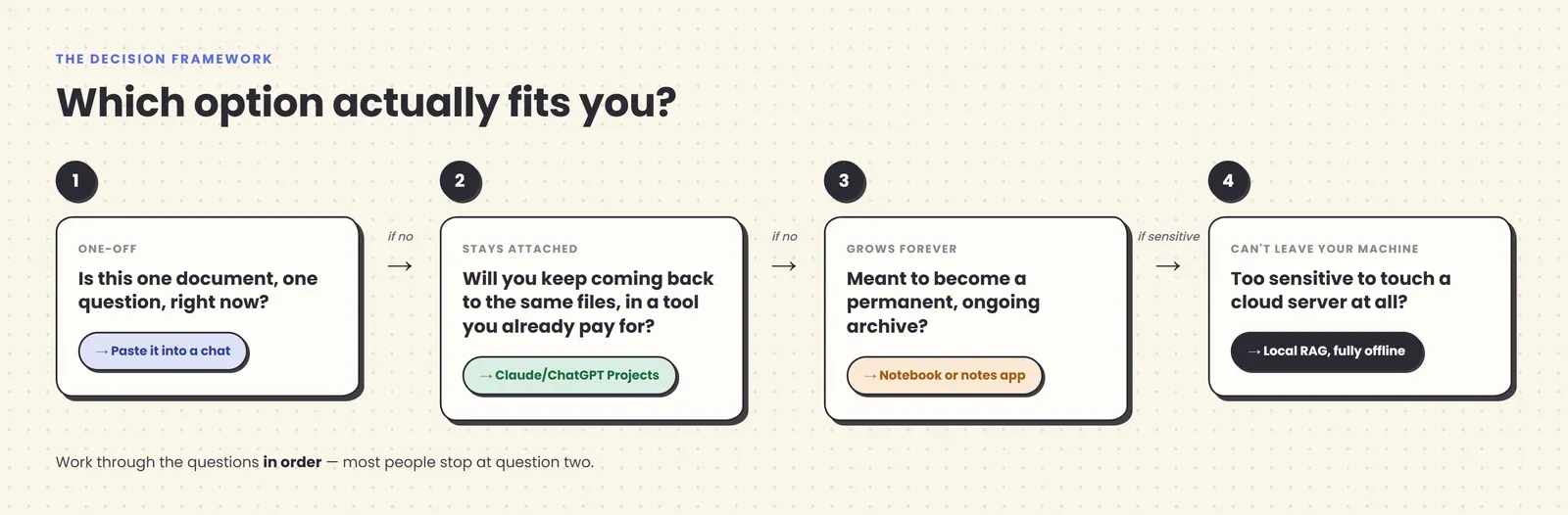
The three questions that actually decide which tool you need
Before comparing specific products, it’s worth being honest about what actually determines the right choice, because the marketing for each of these tools implies it’s the obvious universal answer, and none of them are.
How many documents do you have, and will you keep adding to it? A single contract you need one answer from is a completely different problem than a research archive you’ll be feeding for the next three years. The first barely needs a tool at all. The second needs something built to grow.
How sensitive is the content? A syllabus and a set of medical records are not the same category of risk, even though both are just “documents” to the tool. This should drive your choice as much as convenience does, and the privacy section further down covers exactly what happens to your files on each option.
Do you want this inside a tool you already use, or as a dedicated app? If you already pay for Claude or ChatGPT, or already live in Obsidian or Notion, folding your documents into that existing habit costs you nothing extra and requires no new login. If you don’t, a purpose-built tool is often simpler than repurposing something else.
Answer those three questions honestly and the right option in the table below usually becomes obvious.
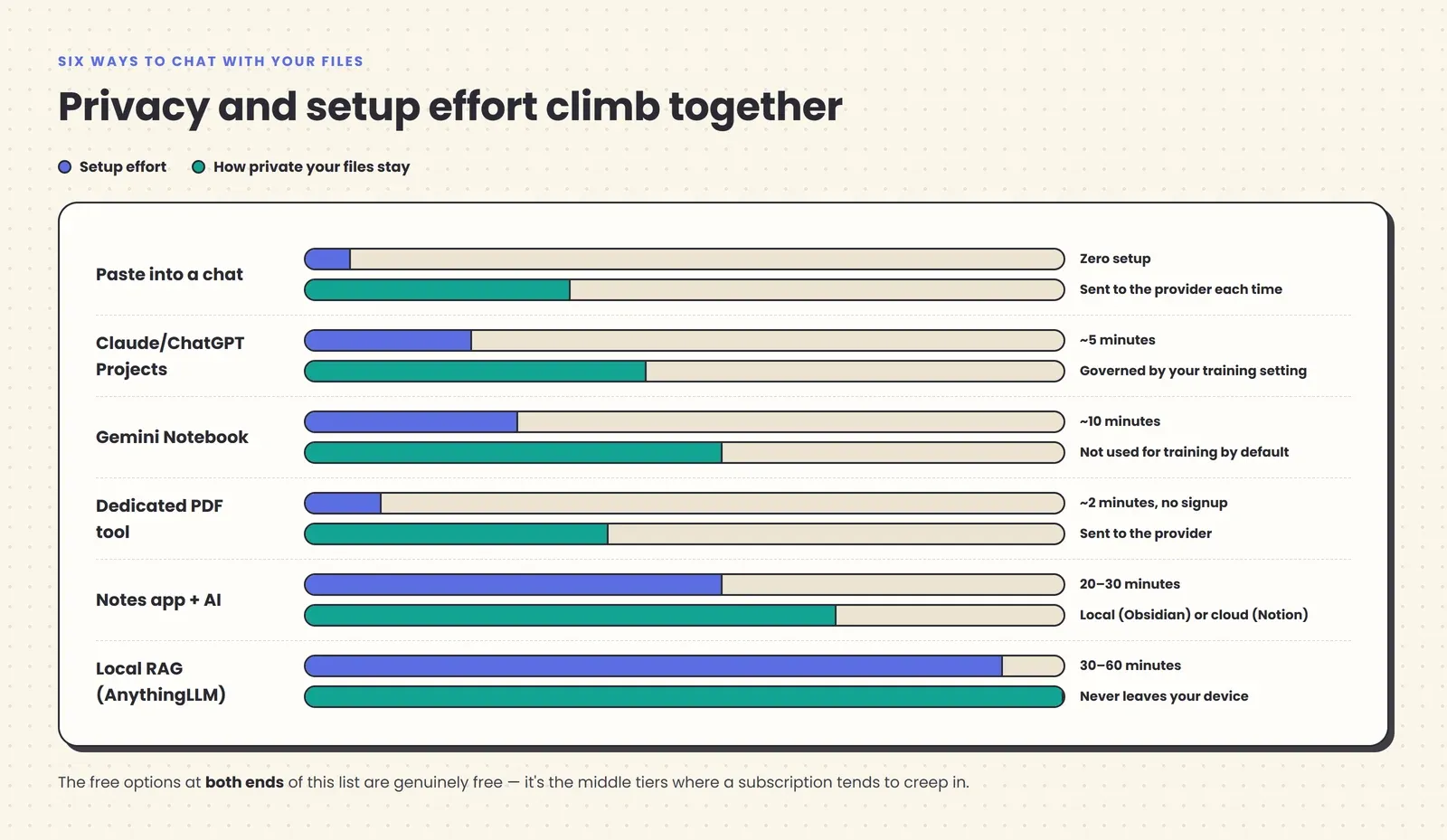
| Approach | Best for | Setup time | Typical cost | Where your files go |
|---|---|---|---|---|
| Paste into a chat | One question, one document, right now | 0 minutes | Free | Sent to the provider for that session only |
| Claude or ChatGPT Projects | A stable file set for a tool you already pay for | ~5 minutes | Included in your existing plan, or free tier | Provider’s servers, governed by your account’s training setting |
| Gemini Notebook | Study material, research, a bounded project | ~10 minutes | Free (paid tiers raise limits) | Google’s servers; not used for training under its stated policy |
| Dedicated PDF tool (ChatPDF and similar) | One document, fast citation-backed answers, no signup | ~2 minutes | Free tier; paid plans for higher volume | Provider’s servers |
| Notes app with AI (Obsidian, Notion AI) | A knowledge base meant to grow for years | 20–30 minutes | Free to $20/user/month | Local (Obsidian) or cloud (Notion), depending on tool |
| Local RAG (AnythingLLM) | Sensitive files, zero cloud exposure | 30–60 minutes | Free (uses your own hardware) | Never leaves your device |
Option 1: Just paste it into a chat
This is the option almost nobody thinks to count, and it’s the right one more often than the rest of this article might suggest. If you have one document and one question, open Claude, ChatGPT, or Gemini, paste the text or upload the file, and ask. No account setup beyond the one you probably already have, no tool to learn, no ongoing cost beyond what you’re already paying.
The limits show up the moment you need it to persist. Close the chat, or start a new one, and the document is gone — you’re re-uploading it every time you want to ask something new. Very long documents also run into the model’s context window, the hard ceiling on how much text it can hold in view at once; paste in more than that and older material gets pushed out or the upload gets rejected outright. And unless you specifically ask for one, a plain chat answer usually won’t hand you a citation back to the exact passage it used, which matters more than it sounds like it should the first time an answer turns out to be wrong.
Reach for this when the question is genuinely one-off. Reach for one of the options below the moment you notice yourself re-uploading the same file for the third time.
Option 2: A persistent project inside Claude or ChatGPT
If you already pay for Claude or ChatGPT, this is usually the fastest real upgrade, because you’re not adding a new subscription or a new login — you’re using a feature that’s probably already sitting unused in an app you open daily.
In Claude:
- Open a new Project from the sidebar and give it a name.
- Add your files to “Project knowledge.” Each file can be up to 30MB, and there’s no fixed cap on the number of files — the practical limit is Claude’s context window, and once your uploaded content exceeds it, Claude automatically switches to a retrieval mode that searches across everything instead of holding it all in view at once.
- Optionally add custom instructions — how you want it to answer, what tone, what to prioritize.
- Start any conversation inside the Project. Every one of them automatically has your uploaded files available, with no re-uploading.
In ChatGPT:
- Create a new Project and give it a name.
- Add files. Per-project file counts are capped by plan — OpenAI’s help center lists 5 files on the Free plan, 25 on Go and Plus, and 40 on Pro, Business, and Enterprise; these numbers are worth double-checking directly, since usage limits are exactly the kind of detail providers adjust without much fanfare.
- Every chat started inside that Project automatically has the uploaded files as context, kept separate from your main chat history and from other Projects.
The trade-off with both is that you’re limited to what fits in the model’s usable context, and once you exceed it, retrieval quality — not raw intelligence — becomes the thing determining answer accuracy. That’s the same ceiling every RAG system runs into, just wearing a friendlier interface. For most personal use — a stable folder of twenty to thirty documents you refer back to regularly — it doesn’t matter. For a genuinely large archive, one of the next two options is a better fit.
Option 3: A dedicated notebook — Gemini Notebook
If you don’t already pay for Claude or ChatGPT, or you specifically want something built from the ground up for exactly this job, Gemini Notebook (renamed from NotebookLM in July 2026) is the strongest free starting point. It was built around one idea: answer strictly from the sources you give it, never from the open web, so every answer is traceable.
Here’s the actual walkthrough:
- Go to Gemini Notebook and create a new notebook.
- Add sources — PDFs, Google Docs, Slides, plain text, website URLs, or YouTube links. The free tier allows up to 50 sources per notebook and 50 chat questions a day, which is a genuinely usable amount for a personal project, not a bait-and-switch trial.
- Ask questions in the chat panel. Answers come with inline citations pointing to the exact source and passage they were drawn from, so you can verify anything before trusting it.
- Optionally, generate an Audio Overview, a podcast-style summary of your sources you can listen to, or a study guide, mind map, or set of flashcards — genuinely useful if the material is dense and you’d rather review it passively on a commute than reread it.
The trade-off is the same discipline that makes it trustworthy: it can’t discover new sources on its own, and it won’t answer from anything outside what you’ve explicitly added. That’s a feature for research and coursework, where you want a bounded, verifiable set of material, and a limitation the moment you want something that also knows what’s happening on the open web. Paid tiers, bundled into Google’s AI Plus and Pro plans rather than sold as a standalone subscription, raise the source cap into the hundreds and add deeper research reports.
Option 4: One document, right now — dedicated PDF tools
Sometimes you don’t want a project, a notebook, or an account at all. You have one PDF and one question. This is the gap that AI PDF & document chat tools fill, and ChatPDF is the one that popularized the category: upload a file, no signup required for a quick question, get an answer with a page-level citation pointing back to where it came from.
The trade-off is scope. ChatPDF’s free tier is capped at two PDFs a day, roughly 120 pages and 50 questions per document, and it handles one PDF per conversation rather than reasoning across several at once — reasonable limits for what it’s built for, but a real ceiling if you regularly work with multiple related documents. It also doesn’t support scanned, image-only PDFs without a text layer, which matters if you’re dealing with an older paper contract you photographed rather than a document you exported digitally. Tools in this category are worth reaching for specifically because they’re disposable: no account to maintain, no knowledge base to keep tidy, just an answer and a citation, then you close the tab.
Option 5: Folding it into your notes app
Everything above treats your knowledge base as a bounded project — a fixed set of files you assembled once. If what you actually want is something that keeps growing for years, the better move is adding AI retrieval to an AI note-taking app you’re already building a habit around, rather than maintaining a separate “AI folder” alongside it.
If you already live in Notion, Ask Notion searches conversationally across your pages, databases, and connected sources like Google Drive and Slack. The catch is pricing: full AI access, including workspace-wide Q&A, requires the Business plan at roughly $20 per user per month — basic AI writing tools exist on the cheaper Plus tier, but the actual “chat with everything I’ve written” feature is gated behind the top tier, not a low-cost add-on.
If you’d rather keep your notes as plain files on your own device, Obsidian is the strongest privacy-first option, though it ships with no AI at all until you add it yourself through community plugins. Smart Connections adds free, fully offline semantic search using a local embedding model, so it can surface related notes with zero data ever leaving your machine and no API key required. Copilot for Obsidian adds an actual chat panel that runs retrieval-augmented generation across your vault, but it typically requires your own paid API key from a provider like OpenAI or Anthropic, so factor that into the real cost. The core Obsidian app itself has been free, including for commercial use, since February 2025.
The genuine advantage of this option over a bounded notebook or project is compounding: every note you write becomes part of the knowledge base automatically, with no separate “upload” step, so the system gets more useful the longer you use it rather than staying frozen at whatever you loaded in on day one.
Option 6: Going fully local and private
Every option above sends your files to someone else’s server, governed by that provider’s privacy settings. For some documents — medical records, immigration paperwork, unreleased financials, anything under an NDA — that’s simply not an acceptable trade regardless of how good the stated policy is.
AnythingLLM is the most complete free answer to that problem. It’s an open-source, MIT-licensed desktop application from Mintplex Labs that bundles everything a personal RAG system needs — document chunking, a built-in vector database, and a chat interface — into one drag-and-drop app, with no coding or Docker setup required for the basic version. Organize documents into isolated “workspaces” (a personal-notes workspace, a work-documents workspace, a tax-records workspace), and each one only ever draws on its own files.
The genuinely private setup pairs it with Ollama, a free tool that runs an open AI model directly on your computer, so nothing — not your documents, not your questions, not the model’s answers — ever leaves your device. The trade-off is hardware and quality: a model small enough to run well on a personal laptop is meaningfully less capable than a frontier model like Claude running in the cloud, so answers can be noticeably rougher. AnythingLLM also supports a hybrid mode, where your documents stay local but you use your own API key to call a frontier model for the actual answer generation — a middle ground between full privacy and full capability, worth knowing about if pure local models feel too limited for what you need.
Budget 30 to 60 minutes for the initial setup, more if you’re installing a local model for the first time. That’s real friction compared to the fifteen-minute options above it, and it’s the right trade specifically when the content justifies it — not as the default for anything you’d be comfortable emailing to a colleague.
Keeping it portable, so you’re not stuck later
One question worth asking before you invest real time curating a knowledge base: if this tool disappears, changes its pricing, or just stops being the best option in two years, do you lose everything, or can you take your files and go?
The answer varies more than any of these products advertise. A bounded notebook or Project is, at its core, just the files you uploaded plus a chat history — download the originals back out and you’ve lost nothing but the Q&A history, which was never the valuable part anyway. Notes apps are where this actually matters: Obsidian stores everything as plain markdown files on your own device from day one, so there’s nothing to “export” in the first place, while cloud-native tools like Notion support markdown export but with fidelity that varies for anything structural, like databases or backlinks, which don’t always survive the trip to another app cleanly.
The practical habit worth building, regardless of which option you pick: keep your original source documents in a normal folder you control, separate from whatever tool you’re chatting with them through. Treat the AI tool as a lens you point at your files, not the only place those files exist. That way, switching tools later, which you probably will at some point given how fast this category moves, costs you an afternoon of re-uploading rather than a rebuild from scratch.
A 15-minute worked example
Concrete beats abstract, so here’s how this actually plays out on something ordinary: you just signed a new apartment lease, and you’ve got the lease itself, the building’s HOA or house rules PDF, and your renter’s insurance policy, three documents you’ll need to reference at random points over the next year and will otherwise never read again after move-in day.
Set up the notebook. Open Gemini Notebook, create a new notebook called “Apartment,” and add all three files. That’s the entire setup: two or three minutes, no account beyond the Google login you already have.
Ask the questions you’d otherwise dig for manually. “What’s the penalty if I need to break the lease early?” “Am I allowed to have a dog under the building’s rules, and is there a pet deposit?” “Does my renter’s insurance cover water damage from a neighbor’s unit?” Each answer comes back citing the specific document and passage it pulled from, so instead of trusting the summary blindly, you can click through and read the actual clause yourself in ten seconds.
Come back to it in six months. When the water heater floods your closet, you don’t dig through a downloads folder trying to remember which PDF has the insurance deductible. You open the same notebook and ask.
That’s the entire value proposition in one mundane, extremely relatable example. Nothing about it required believing the AI is smart. It required believing that a system which reads three documents faster than you can locate them, and shows you exactly where each answer came from, saves genuine time on a task everyone has and nobody enjoys.
A second example, this time using a tool you might already pay for: you’re job hunting, and you’ve collected two competing offer letters, four versions of your resume tailored to different roles, and a page of scattered notes from three interview calls. Instead of a fresh app, open Claude, start a Project called “Job Search,” and upload all of it to Project knowledge. Then ask it directly: “Compare the total compensation in both offer letters, including any signing bonus and vesting schedule.” “Which version of my resume did I send to the company that asked about the vesting question?” “Summarize what each interviewer said they were looking for, based on my notes.” None of that requires re-explaining your situation from scratch each time, because the Project remembers it across every conversation you start inside it, and you can keep adding to it as more offers or interviews come in.
Where these systems get it wrong
This is the part most guides to this topic skip, mostly because “it just works” makes for a cleaner pitch. It’s also not true, and if you’re about to trust one of these tools with something that matters, this is exactly what to watch for.
Retrieval can miss the right passage. If your question doesn’t closely match how the answer is worded in the source, the search step can pull back the wrong section, or a partial one, and the model will still write a confident-sounding answer from whatever it found. This is the single biggest source of wrong answers in any RAG-based system, personal or enterprise, and it’s covered in more depth in our breakdown of what RAG doesn’t fix.
Citations reduce hallucination. They don’t eliminate it. A model can still misread a retrieved passage, blend two sources together incorrectly, or state something with total confidence that turns out to be subtly wrong. Seeing a citation is a reason to check the source faster, not a reason to skip checking it. For a closer look at exactly how and why this happens, see our piece on AI hallucinations.
It only knows what you gave it. These systems don’t reach out to verify a document against reality, check whether a policy has since changed, or notice that your lease references a house-rules version you never uploaded. Garbage in, garbage out applies literally: a scanned PDF with no text layer, unless the tool has OCR, is invisible to the system even though it looks uploaded.
More documents doesn’t mean better answers. Dumping in everything you own, rather than the specific files relevant to a project, makes retrieval noisier, not smarter. Curate what goes in the same way you’d curate what you hand a new assistant on their first day.
None of this replaces judgment on anything high-stakes. Tax, legal, medical, and immigration questions deserve a human check on top of an AI answer, citation or not. Use these tools to get oriented and locate the right passage fast. Don’t use them as the final word on something where being wrong is expensive.
What actually happens to your documents
This deserves its own section because “is it safe to upload this” is the single most common hesitation, and the honest answer is “it depends on the tool and your settings,” not a blanket yes or no.
For cloud tools, your files are processed on the provider’s servers, and whether they’re also used to improve that provider’s AI models depends on your account type and your privacy settings, not on some fixed rule about AI in general. Anthropic’s consumer plans (Free, Pro, and Max) let you choose whether your chats and files can be used to improve Claude, a setting worth checking directly in your account rather than assuming either way — Claude for Work and Enterprise accounts are excluded from training under Anthropic’s commercial terms regardless of that toggle. OpenAI’s personal accounts (Free, Plus, Pro) have a similar “Improve the model for everyone” setting in Data Controls, switched on by default unless you turn it off yourself; Business, Enterprise, and Education accounts are excluded by default. Gemini Notebook’s own documentation states that notebook content is not used to train its models unless you actively submit feedback on a response, and Google Workspace and Education accounts go further, with no human review of uploads at all.
The practical takeaway isn’t “cloud AI is unsafe.” It’s that the setting exists, it’s usually two minutes away in your account preferences, and checking it before you upload something you’d rather not have anywhere but your own disk takes less time than reading this paragraph did. For anything that genuinely can’t leave your device — and only you know where that line sits for you — the local option in this guide exists specifically for that case.
Three things worth checking before you upload anything sensitive:
- Your account type. A free or Plus/Pro consumer account and a Business, Team, or Enterprise account from the same provider often have meaningfully different default data-handling terms. If your employer already pays for one, use that account for work-adjacent documents rather than your personal login.
- The training toggle specifically. Look for it under Settings > Privacy or Data Controls, worded roughly as “improve the model” or “use my data for training.” It’s almost always a single switch, and it’s almost never turned on or off by accident — someone has to have actively set it to whatever state it’s currently in.
- Whether a temporary or incognito mode exists for anything you don’t want saved at all, separate from the training question entirely. Most major providers now offer one, and it’s the right choice for a single sensitive question you don’t want persisted anywhere, cloud knowledge base or not.
Common mistakes people make building one
Uploading everything instead of curating. More files feels like more coverage. In practice it means the retrieval step has more noise to search through, which lowers answer quality rather than raising it. Start with the documents actually relevant to a project, not your entire downloads folder.
Treating a citation as proof. A source link means the model is showing its work, not that the work is correct. Click through on anything you’d act on.
Picking a tool based on hype instead of the three questions above. The tool your favorite newsletter mentioned last week might be a poor fit if your real need is a permanent, growing archive and it’s built for bounded one-off projects, or vice versa.
Skipping the privacy setting because it felt like an extra step. It’s genuinely a two-minute check, and it’s the difference between an informed decision and an accidental one.
Expecting reasoning the documents don’t contain. These tools are an open-book exam, not omniscience. If the answer to your question isn’t in any of your sources, a good system says so; a mediocre one guesses anyway and sounds just as confident either way.
The bottom line
A personal AI knowledge base isn’t a new category of magic. It’s the same retrieve-then-answer idea behind every enterprise chatbot that cites its sources, scaled down to fit your own scattered folder of contracts, notes, and PDFs. The right way to build one depends on three unglamorous questions — how much you have, how sensitive it is, and whether you want it inside a tool you already use — not on which product has the loudest launch post this month.
Start small. Pick the option that matches where you actually are: paste a single document in today if that’s all you need, spin up a Gemini Notebook this weekend if you’ve got a real folder worth organizing, or go local if the content genuinely can’t leave your machine. Fifteen minutes from now, you could have a version of your own documents that actually answers back — with a citation, not a guess.
Frequently asked questions
What's the real difference between pasting a document into ChatGPT and using a tool like Gemini Notebook?
Pasting into a plain chat is a one-time, one-conversation trick — the file's context disappears once you start a new chat. Gemini Notebook, and the Projects feature in Claude and ChatGPT, keep your documents attached permanently, so every new conversation in that space already has them loaded, and answers usually come with a citation pointing back to the source passage.
Is it safe to upload sensitive documents to build an AI knowledge base?
It depends entirely on the tool and your account settings, not on AI in general. Consumer accounts on most platforms can be used to improve the underlying model unless you check a setting that turns this off. For genuinely sensitive material — medical, legal, financial, anything under an NDA — either confirm your account type and privacy toggle first, or use a local tool like AnythingLLM, where your files never reach a server at all.
Do I need to understand embeddings or vector databases to build one of these?
No. That's the machinery underneath retrieval-augmented generation, and every tool covered here handles it for you automatically. You need to know that these systems search for meaning rather than exact keywords, not the math behind how. For the mechanics, see our plain-English guide to [what RAG actually is](/blog/what-is-rag).
Can I build a personal AI knowledge base for free?
Yes. Gemini Notebook's free tier covers 100 notebooks and 50 sources each. ChatPDF, Obsidian's core app plus its Smart Connections plugin, and AnythingLLM running locally are all free too. You only start paying if you need higher source limits, a chat-based plugin that calls a paid API, or a workspace-wide feature like Notion's Business-tier Ask Notion.
How many documents can I actually put into one of these systems?
It varies by tool and plan. Gemini Notebook allows 50 sources per notebook on the free tier, rising to 100 to 600 or more on paid plans. Claude Projects caps each file at 30MB with no fixed file-count limit, bounded instead by the model's context window. Local tools like AnythingLLM scale to tens of thousands of documents, limited mainly by your own hardware.
What happens when my knowledge base gets too big for the AI to search well?
Retrieval quality degrades gradually rather than failing outright — the system starts missing relevant passages or returning near-misses instead of admitting it can't find the answer. This is exactly the same limitation covered in our piece on [tokens and context windows](/blog/tokens-context-windows-why-ai-forgets): more sources means more searching, not more understanding, so curate what you add rather than dumping in everything you own.
Related articles
AI Answer Accuracy: How Companies Keep AI On-Message
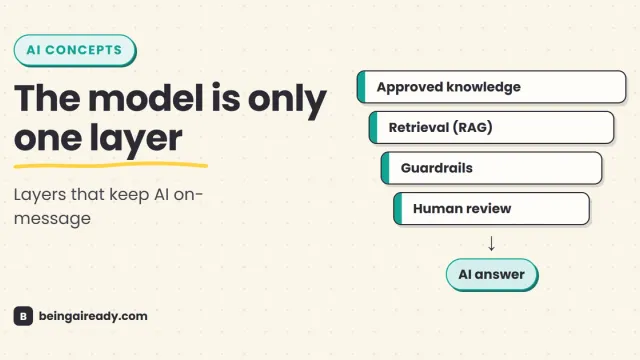
How companies make AI answers accurate, consistent, policy-safe, and on-brand using approved knowledge, RAG, guardrails, evaluations, and human review.
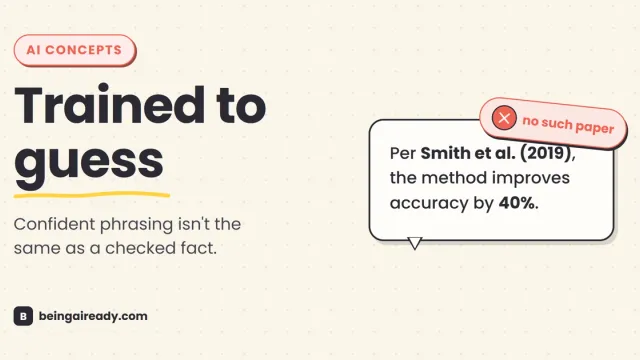
AI Hallucinations: Why AI Confidently Makes Things Up
AI hallucinations aren't random glitches. New research shows they're a predictable result of how models are trained and scored, and how to catch one.
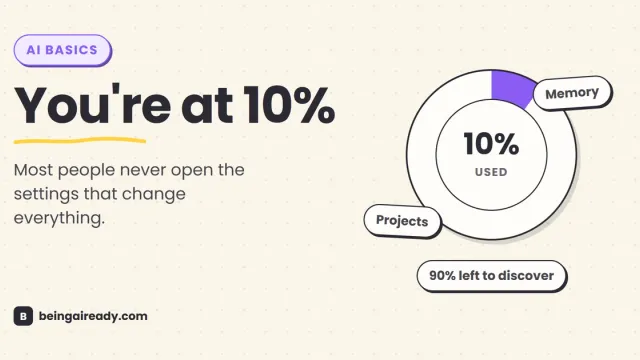
How to Use ChatGPT, Claude, and Gemini Well
Most people barely scratch the surface of ChatGPT, Claude, and Gemini. A practical guide to the settings and habits that turn a beginner into a confident user.