
AI Design Tools
Introduction
AI design tools help you get from an idea to something you can actually look at — a UI screen, a wireframe, a logo, a set of on-brand graphics — without starting from a blank canvas or booking a designer for every first pass. Some generate interface concepts from a prompt or a sketch, some produce editable brand assets, and some add an AI layer to a design tool you already use. This page is for founders, product managers, marketers, and designers who want a faster first draft and a clear read on which tool fits which job.
Top recommendations
Figma
FreeThe industry-standard collaborative interface design tool, now layering AI directly onto its existing canvas through First Draft, Figma Make, and the newer Figma Agent.
Uizard
FreeA prompt-first AI UI design tool built for non-designers, turning text prompts, screenshots, or hand-drawn sketches into editable multi-screen mockups.
Comparison
| Tool | Best for | Pricing |
|---|---|---|
| Figma | Teams already designing UI/UX in Figma who want AI to speed up first drafts and repetitive edits | Free (Starter); Professional Full seats with AI features run about $16–$20/editor/month |
| Uizard | Non-designers — founders, product managers, small teams — who need a fast first-draft UI concept | $12/month (Pro, billed annually; 500 AI generations/month) |
| Visily | Non-designers and small teams who want a genuinely free tool for wireframes and mockups | $14/editor/month (Pro) |
| Google Stitch | Anyone who wants a free, no-commitment way to try prompt-to-UI generation | Free |
| Recraft | Designers and marketers who need production-ready vector assets — icons, illustrations, brand graphics — at scale | From about $10/month for the entry paid plan (roughly 1,000 credits/month with commercial rights and private generation) |
| Looka | Early-stage founders and small business owners who need a fast, affordable logo | $20 one-time (Basic Logo Package, PNG only) |
Reviews
Figma
The industry-standard collaborative interface design tool, now layering AI directly onto its existing canvas through First Draft, Figma Make, and the newer Figma Agent.
Read the full review — Figma →Uizard
A prompt-first AI UI design tool built for non-designers, turning text prompts, screenshots, or hand-drawn sketches into editable multi-screen mockups.
Read the full review — Uizard →Visily
A free-forever AI wireframing and UI design tool for non-designers, combining text-to-UI generation, screenshot conversion, diagramming, and two-way Figma handoff in one canvas.
Read the full review — Visily →Google Stitch
A free, experimental Gemini-powered UI generation tool from Google Labs that turns prompts, sketches, or screenshots into UI screens and exportable code — and the direct successor to the acquired Galileo AI.
Read the full review — Google Stitch →Recraft
An AI design platform best known for generating true, editable vector graphics alongside raster images, with brand kits that keep AI-generated assets visually consistent across a project.
Read the full review — Recraft →Looka
An AI logo and brand identity generator that produces dozens of logo concepts from a business name and style preferences, with an optional Brand Kit of matching marketing templates.
Read the full review — Looka →Frequently asked questions
What happened to Galileo AI? I thought it was one of the popular AI UI design tools.
Galileo AI was acquired by Google in mid-2025 and folded into Google Stitch, a free Gemini-powered UI generation tool inside Google Labs. Its old domain now redirects straight to Stitch. It's the same underlying idea (text/sketch to UI screens), rebuilt under Google's branding, which is why Stitch appears here instead of the original Galileo AI product.
How is this different from an AI image generation category like Midjourney or Adobe Firefly?
Image generators produce standalone raster or vector art from a prompt — illustrations, photos, concept art. The tools on this page are built specifically for interface design, wireframing, and brand identity work: they output editable, structured design files (UI screens, layered vectors, brand kits), not one-off images. Recraft can look similar to an image generator on the surface, but its core value is production-ready, editable vector output and brand consistency rather than artistic image generation — see AI Image Generation for the art-focused tools instead.
Do I need design skills to use these tools?
Not for most of them. Uizard, Visily, Looka, and Google Stitch are explicitly built for non-designers — product managers, founders, and small business owners. Figma's AI features assume at least some familiarity with Figma itself, since they operate inside its normal design canvas. Recraft is usable without design training but rewards some understanding of brand and layout basics.
Can an AI-generated UI design go straight into production code?
Partially, and it depends on the tool. Figma's Dev Mode and MCP server, and Google Stitch's code export, can hand structured design context or generated code to a developer or coding assistant, but the output is almost always a starting point that needs review and refinement rather than something you ship unchanged. None of these tools replace a developer for production-grade implementation.
Which tool should I use for a logo versus a full app or product UI?
Looka and Recraft are for brand identity — logos, icons, and marketing assets — not interface design. Figma, Uizard, Visily, and Google Stitch are for UI/UX work — screens, flows, and prototypes. Using a logo generator to design an app screen, or a UI tool to design a logo, will give you a worse result than picking the tool built for that specific job.
What AI design tools are good for (and what they’re not)
These tools earn their keep on the first draft and the repetitive middle of a design job: turning a rough sketch or a prompt into an editable screen, spinning up variations of a layout, applying a design system across a dozen screens, or generating a starter logo and a matching set of assets. That covers a surprising amount of everyday design work.
Where they struggle is the last mile. A pixel-perfect production screen, a genuinely distinctive brand identity, a layout that has to be exactly right — those still want a human in the loop. The honest way to use this category is as a way to reach a good starting point faster, not as a replacement for design judgment. Treat the output as a draft to react to, not a finished asset to ship.
How to choose the right AI design tool
Start with what you’re actually producing, because that one question rules out most of the list. A UI screen, a wireframe, a logo, and a marketing graphic are four different jobs, and a tool built for one is usually mediocre at the others. Once you know the job, a few practical questions narrow it down fast:
- Interface or brand? UI and wireframing tools output screens, flows, and prototypes. Brand and graphic tools output logos, icons, and editable vector assets. Picking the wrong family is the most common mistake.
- Does it need to fit your existing workflow? If your team already lives in a particular design file or hands off to developers a certain way, a tool that plugs into that beats a standalone one you’d have to export out of.
- Editable output or just an image? Some tools give you structured, layered files you can keep working on; others give you a flat picture. For anything you’ll iterate on, structured wins.
- What’s the data policy? If you’re uploading unreleased product designs or client-confidential work, check how the vendor handles and trains on your uploads first. Several tools in this space changed those terms recently.
- Can you test it on real work? Most offer a free tier or trial. Run your actual next task through it before committing — polished demos hide how a tool handles your specific job.
How AI changes design work compared with the old way
Without AI, a first draft meant either a blank canvas and a lot of manual pushing of pixels, or hiring someone and waiting for the round-trip. The AI version compresses that: you describe or sketch what you want and get something editable back in minutes, then spend your time refining instead of starting from nothing. The bigger shift is on the repetitive work — applying a style across many screens, generating ten variations to react to, turning a hand sketch into a real file. That’s the part that used to eat hours and added little creative value.
The trade-off is that AI-generated design tends toward the average. It’s trained on what already exists, so it’s strong for conventional, get-it-done work and weakest exactly where you want to stand out. For a distinctive brand or a signature interface, use it to move fast through the obvious options, then let a human take it somewhere the model wouldn’t have gone on its own.
Related articles
How to Choose the Right AI Tool: A Buyer's Framework
A calm, no-hype framework for choosing the right AI tool for any task: define the job, judge the real criteria, run a cheap trial, and avoid costly switching.
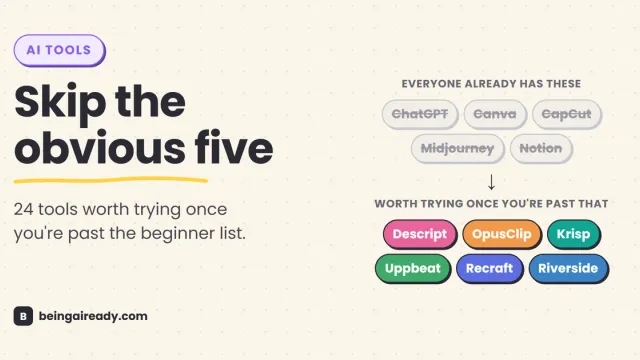
24 Underrated AI Tools for Content Creators in 2026
Skip the five AI tools every list recommends. Here are 24 lesser-known ones solo creators actually use, organized by where they fit your workflow.