
33 Best AI Tools for Students in 2026 (Practical Guide)
It is 11pm the night before an essay is due, and you have nineteen tabs open. Two are AI chatbots you signed up for months ago and stopped using. One is a PDF you have scrolled past four times without reading a word. One is a YouTube video about how to focus. The essay itself is a blank document hiding behind all of them.
Choosing AI tools as a student has a strange quality to it: the tools keep getting easier to use, and choosing between them keeps getting harder. A few years ago the question was whether an assistant could explain a difficult paragraph or help debug your code. Now the question is which of several capable assistants to open, whether you also need a specialist research product, and how many subscriptions you can collect before your “productivity stack” becomes another way to avoid studying.
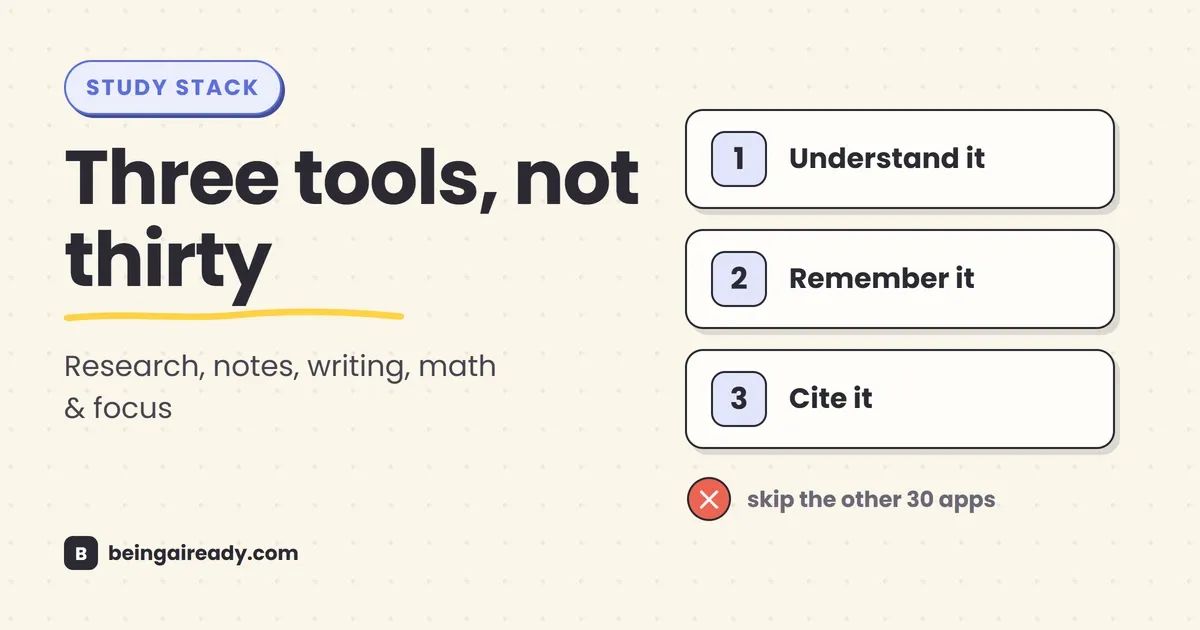
The useful answer is not to install everything on this page. It is to find the part of studying that is currently slowing you down, choose one tool for that job, and use it until you either build a better habit or hit a real limitation. Most students need a small stack of three to five tools, not 33 accounts and a color-coded dashboard for managing them.
Quick answer: The best AI tools for most students in 2026 are ChatGPT or Claude for explanations, NotebookLM for studying from your own materials, Perplexity for web research with sources, Zotero for references, and Anki for remembering what you learn. Add a specialist only when your course creates a specialist problem: Wolfram|Alpha for computation, SciSpace for research papers, Gamma for first-draft presentations, or GitHub Copilot for coding.
Two important points before the list.
First, not every tool below is technically an AI product. Anki, Zotero, Desmos, Exercism and Forest are here because they solve student problems better than a chatbot often does. “Uses AI” is not a useful purchasing criterion. “Helps me understand this chapter, find reliable evidence or submit better work” is.
Second, an AI tool can make work look finished before the learning is finished. That is its most attractive feature and its biggest risk. The best use of these products is usually to create feedback loops: explain this differently, test me, show me what I missed, find the original source, check my reasoning. The weakest use is asking for a polished answer you could not defend five minutes later.
The best AI tools for students at a glance
| Job | Best starting point | Strong alternative | Specialist pick |
|---|---|---|---|
| Ask questions and understand concepts | ChatGPT | Claude | Gemini |
| Research the live web | Perplexity | Elicit | Consensus |
| Study from your own materials | NotebookLM | Anki | RemNote |
| Capture lectures and notes | Otter.ai | Notability | Obsidian |
| Understand dense PDFs | SciSpace | ChatPDF | Semantic Scholar |
| Manage citations and literature | Zotero | Scite | ResearchRabbit |
| Edit writing | Grammarly | QuillBot | Hemingway Editor |
| Math and STEM | Wolfram|Alpha | Mathpix Snip | Desmos |
| Slides and visual explanations | Gamma | Napkin AI | Canva |
| Coding and computer science | GitHub Copilot | Cursor | Exercism |
| Focus and time management | Forest | Todoist | Notion |
How these tools were chosen
This is not a ranking of the most technically impressive models. It is a shortlist of study and learning tools that fit recognizable student jobs.
A tool made the cut when it did at least one of four things well:
- reduced the time between confusion and a useful explanation;
- made sources, assumptions or working steps easier to inspect;
- turned passive material into active practice;
- removed administrative friction without pretending to replace judgment.
Ease of use matters, but so does the quality of the hand-off. A tool that produces a beautiful answer you have to fact-check line by line has not necessarily saved time. A less glamorous tool that reliably stores the right citation, schedules the right flashcard or graphs the right function may be more valuable over a semester.
For a broader way to evaluate products, read How to Choose the Right AI Tool. The principle is simple: define the job before comparing the brands.
1. Ask and understand: your base layer
A general AI assistant is the base layer because it can help across almost every subject. The trap is treating it like an answer machine. The better mental model is an endlessly patient tutor: knowledgeable, fast and occasionally wrong. Most of the value comes from how you talk to it, which is a skill worth building on its own — see how to use ChatGPT, Claude and Gemini well.
Claude — best for long documents and sustained reasoning
Claude is particularly useful when the problem is not a single question but a chain of thought: a long reading, a complicated argument, a case study with several competing interpretations, or a draft whose logic needs testing rather than merely polishing.
Its practical strength for students is continuity. You can upload substantial course material, keep related conversations in a project, and ask Claude to work within the terminology and assumptions of those sources. Anthropic also offers education-focused learning features designed to guide students through a problem instead of immediately handing over a final response.
Use it for: comparing theories, outlining an essay from your own notes, analyzing a long policy document, rehearsing an oral exam, or finding gaps in an argument.
A useful prompt:
I am studying this for an exam. Do not summarize it yet. First identify the three ideas I must understand, then question me one idea at a time. When I answer, point out the exact part of the source that supports or challenges my answer.
Watch for: Claude can sound measured and persuasive even when it has made an unsupported leap. Ask it to distinguish what comes from your files, what comes from general knowledge and what is inference.
ChatGPT — best all-rounder for guided learning
ChatGPT remains the easiest general recommendation because it can move between explanation, images, files, voice, data, coding and practice without asking you to rebuild your workflow in another product.
For students, its most important feature is Study Mode. Instead of treating every question as a request for an answer, Study Mode can ask what you already know, break a topic into stages, use Socratic questions and check understanding as you go. You can also upload class notes, slides or a PDF and ask it to create practice questions grounded in those materials.
Use it for: “explain this five ways,” step-by-step tutoring, mock viva questions, feedback on a solution, turning a syllabus into a study plan, and practicing with increasingly difficult examples.
A useful prompt:
Teach me opportunity cost as if I am new to economics. Start with one everyday example, then one numerical example, then give me a common exam trap. Do not move to the next stage until I answer a check question correctly.
Watch for: A fluent explanation is not proof of a correct explanation. For factual or academic claims, ask for sources and open them. For assessed work, use ChatGPT to interrogate your thinking rather than to impersonate it.
Gemini — best when your work already lives in Google
Gemini becomes more useful when the surrounding workflow matters more than small differences in model quality. If your course runs through Google Drive, Docs, Gmail and Slides, Gemini can help locate files, summarize material and draft or revise within that ecosystem. Availability varies by institution, account type and plan, so the integration may be stronger on a university-managed account than on a personal free account.
Use it for: finding the document that mentioned a deadline, comparing several Drive files, converting rough notes into a structured report, preparing a first draft in Docs, or building a study plan around calendar commitments.
A useful prompt:
Using only the files I selected from Drive, create a revision checklist for this module. Group it by topic, include the source file for every item, and flag anything mentioned in the syllabus that is missing from my notes.
Watch for: Integration creates convenience, not automatic permission. Do not connect or upload confidential research data, personal records or restricted course material unless your institution allows it.
Which one should you choose? Start with whichever you already have. Move only when you can name the limitation: Claude for a large reading and long argument, ChatGPT for broad multimodal tutoring, Gemini for Google-centered work. For a fuller comparison, see ChatGPT vs Claude vs Gemini vs Perplexity.
2. Deep research: sources, not vibes
General chatbots can search, but dedicated research tools are designed around retrieval, evidence and inspection. They do not remove the need to read papers. They help you decide which papers deserve that time.
Perplexity — best for fast web research with visible sources
Perplexity sits somewhere between a search engine and an AI assistant. You ask a question in natural language; it searches the web, synthesizes an answer and attaches citations that lead back to the original pages.
That makes it a strong first pass for unfamiliar topics. It is good at helping you learn the vocabulary of a field, identify major organizations, locate recent developments and split a broad research question into smaller lines of inquiry. Its research modes can run a more extended search and produce a structured report.
Use it for: scoping a topic, finding current statistics, comparing policies, locating primary sources, and building a reading list before moving into academic databases.
A useful prompt:
Map the main arguments around universal basic income since 2020. Separate empirical findings from political claims, prioritize primary research and government sources, and give me a table showing what each source actually establishes.
Watch for: Citations are a route to verification, not a guarantee. Open the source and check that it supports the sentence beside it. A weak page does not become authoritative because an AI linked to it.
Elicit — best for literature reviews and evidence extraction
Elicit is built for scientific research rather than general web browsing. It can search a large academic corpus, help screen papers against criteria, extract structured information and synthesize findings with sentence-level support from the underlying studies.
This is especially useful when your task is repetitive but intellectually important: finding studies that match a population and intervention, checking sample sizes, extracting outcomes, or comparing methods across dozens of papers. For a dissertation or systematic review, that can remove hours of spreadsheet work while leaving the inclusion decisions visible.
Use it for: literature review scoping, screening titles and abstracts, extracting study characteristics, comparing methods, and creating an evidence table.
A useful prompt:
Find empirical studies on the effect of retrieval practice on university students. Include only studies with a comparison group. Extract sample size, subject area, intervention length, outcome measure and main limitation. Show supporting text for each extracted field.
Watch for: A structured table can make messy evidence look cleaner than it is. Check definitions, study design and whether apparently comparable outcomes are actually measuring the same thing. Some advanced review workflows are paid.
Consensus — best for asking what peer-reviewed research says
Consensus is an academic search engine that focuses on peer-reviewed research. It is useful when your question has a form that studies can plausibly answer: Does creatine improve cognitive performance? Is remote work associated with productivity? Do later school start times improve sleep?
The product tries to make a literature base legible through summaries, filters and tools that compare findings. This can be much faster than starting with a general search, particularly for health, psychology, education and social-science questions.
Use it for: checking whether a claim has been studied, locating review papers, understanding whether evidence is mixed, and finding terminology for a database search.
A useful prompt:
What does peer-reviewed research say about smartphone use before sleep in university students? Separate correlational studies from experiments, and do not treat an association as proof of causation.
Watch for: “What the research agrees on” is not always a meaningful question. A database may contain studies with different populations, interventions and outcome measures. Read the strongest papers and reviews, not just the aggregate label.
3. Study and memory: actually retain it
Summaries feel productive because they are easy to consume. Exams usually require something harder: retrieval. The tools in this section help turn notes and readings into questions you must answer from memory.
NotebookLM — best for studying from your own sources
NotebookLM is one of the most useful student products because it starts from material you choose. Add lecture slides, PDFs, websites, notes, audio or other supported sources, then ask questions and receive answers with citations back to those materials.
It can also create study guides, flashcards, quizzes and Audio Overviews. The audio feature is often described as turning PDFs into a podcast, but the more important point is grounding: the conversation is based on your source collection rather than the open-ended memory of a general chatbot.
Use it for: combining a semester of readings, generating practice questions, finding where a concept appears across sources, creating an audio recap for a commute, and checking gaps between lectures and the textbook.
A useful prompt:
Build a 30-minute closed-book test from these sources. Use five recall questions, three application questions and two questions that compare authors. After I answer, grade only against the uploaded sources and cite the relevant passages.
Watch for: Grounded does not mean infallible. NotebookLM can still misread a source or overstate a synthesis. Follow the citations, especially when several documents disagree.
Anki — best for durable memory through spaced repetition
Anki is not an AI tool, and that is part of its appeal. It is a flashcard system built around spaced repetition: cards return at expanding intervals based on how well you remember them.
Used well, Anki is excellent for material that must become readily retrievable: vocabulary, anatomy, formulas, legal cases, drug interactions, dates, definitions and conceptual distinctions. It is less useful when students copy entire paragraphs onto cards and turn every review into a reading exercise.
Use it for: high-volume factual recall and short prompts with clear answers.
A better card: “What two conditions make an estimator unbiased?”
A worse card: “Explain everything from Week 4.”
Watch for: Card creation can become a hobby that replaces studying. Keep cards atomic, include enough context to avoid ambiguity, and suspend bad cards rather than suffering through them. The desktop app and AnkiWeb are free; the official iOS app is a paid purchase, while Android users commonly use AnkiDroid.
RemNote — best when notes and flashcards should be the same system
RemNote combines structured notes with flashcards and spaced repetition. A line in your notes can become a card without being copied into a separate deck, which removes one of Anki’s biggest points of friction.
The product has expanded into lecture recording, transcription, AI-generated study materials and tutoring grounded in your notes or recordings. That makes it attractive for students who want one workflow from capture to review: record a lecture, clean the transcript, organize the ideas, generate cards and schedule them.
Use it for: courses with cumulative knowledge, linked concepts and frequent review, especially medicine, law, languages and technical subjects.
A useful workflow: write a short concept note in your own words, turn only the key relationship into a card, then add a source link or lecture timestamp as supporting context.
Watch for: The system is powerful enough to become fiddly. Start with notes and basic cards. Do not spend the first month designing a perfect knowledge graph.
4. Lectures and notes: capture the room without leaving it
Lecture tools are useful when they reduce frantic transcription and let you pay attention. They become harmful when recording replaces listening or when consent is treated as optional.
Otter.ai — best for searchable lecture transcripts
Otter.ai provides real-time transcription, captions, searchable notes and automatic summaries for live or recorded speech. Its education features are aimed at lectures, discussions and study sessions, and it can preserve the relationship between audio, transcript and captured slides.
This is particularly helpful for students who process spoken language slowly, study in a second language, need accessibility support, or want to revisit the exact wording of a dense explanation.
Use it for: lectures, interviews, group discussions and research conversations where recording is allowed.
A useful workflow: mark only the moments you did not understand during the lecture. Later, review those timestamps, correct the transcript and turn the confusing section into one or two questions.
Watch for: Automated transcripts contain errors, especially with technical vocabulary, names, accents and poor audio. More importantly, recording people without permission may breach university rules, research ethics or local law. Ask first.
Notability — best for handwritten notes linked to audio
Notability is strongest for students who like handwriting on a tablet but still want digital search, imported PDFs, audio and AI-assisted review. Its audio replay can link what you wrote to what was being said at that moment, making a vague note such as “important” far more useful later.
The app now includes transcription, summaries, flashcards, quizzes and question-answering over notes. The core value, however, remains the tight connection between the page and the recording.
Use it for: equations, diagrams, annotated slides, language classes and any lecture where spatial layout matters.
A useful workflow: write less during the lecture. Capture the argument, mark uncertainty with a symbol, then tap that point during review to hear the surrounding explanation.
Watch for: Recording everything creates a large archive that few students revisit. Decide in advance what will trigger a review: unclear points, likely exam material or a missed class.
Obsidian — best for notes you want to own for years
Obsidian stores notes as local Markdown files. That sounds like a technical detail, but it has a practical consequence: your notes are not trapped in a proprietary page format, and you can organize, search and link them with ordinary files on your device.
Obsidian is useful for subjects where ideas connect over time: philosophy, history, law, research methods, computer science and long projects. It is not automatically an AI product, although plugins can add AI search or chat. Its real advantage is longevity and control.
Use it for: durable research notes, linked concepts, literature notes, project logs and a personal knowledge base that can survive beyond graduation.
A useful workflow: create one note per concept, claim or source; link related notes naturally; write a short “why this matters” paragraph in your own words.
Watch for: Local files are not magically secure. Your device, backups and third-party plugins still matter. Community plugins can send content to external services, so check permissions before installing them.
5. Dense PDFs: when the reading fights back
A PDF chat tool is not a substitute for reading. It is a way to change the order of reading: ask what the paper is doing, locate the relevant section, then read that section with more context.
SciSpace — best for difficult research papers, equations and tables
SciSpace is designed around academic papers. Its PDF chat can explain highlighted passages, answer questions with links back to the document and help interpret math, tables and technical language.
For a non-specialist entering a new field, this is often more useful than a generic summary. You can ask why a method was chosen, what a variable means, how a result relates to the hypothesis or what assumptions sit behind an equation.
Use it for: journal articles, methods sections, unfamiliar terminology, equations, tables and papers outside your main discipline.
A useful prompt:
Explain this results table to someone who understands basic statistics but not this field. Define each column, identify the comparison that answers the research question, and tell me what the table cannot establish.
Watch for: An explanation can smooth over ambiguity. Check the original method and captions. If the paper uses a specialized term, ask for the authors’ definition before accepting a general one.
ChatPDF — best for quick, simple document Q&A
ChatPDF does one job with very little setup: upload a PDF and ask questions about it. Answers include references that can jump to the relevant place in the document, and multiple documents can be compared in a conversation on supported plans.
Its simplicity makes it useful for textbooks, reports, policies and manuals where you know the answer is somewhere in the file but do not know where.
Use it for: locating definitions, comparing chapters, extracting requirements, building a chapter outline and asking follow-up questions about a specific passage.
A useful prompt:
List every condition, exception and deadline in this policy. For each one, cite the page and quote only the shortest phrase needed for me to verify it.
Watch for: Scanned or badly formatted PDFs can produce weak extraction. Tables, footnotes and multi-column layouts are common failure points. Always inspect the cited page.
Semantic Scholar — best free discovery layer for academic papers
Semantic Scholar is a free academic search engine from the Allen Institute for AI. It helps students find papers, follow citation links, create alerts and quickly judge relevance through features such as single-sentence TLDR summaries for many papers.
The TLDR is not the paper. It is a triage device. It helps you decide whether to open the abstract, and the abstract helps you decide whether to read the full text.
Use it for: finding influential papers, tracing authors, following references, creating topic alerts and reducing a long result list to a manageable reading queue.
A useful workflow: start with one strong paper, inspect its references and later citations, then save the most relevant items to Zotero.
Watch for: Citation counts vary heavily by field and age. A highly cited paper is not automatically better, and a new or niche paper may be important before it has had time to accumulate citations.
6. Citations and literature: stop losing marks to administration
Citation tools do not make a source credible, but they remove the mechanical work of storing metadata, inserting references and rebuilding a bibliography every time the style changes.
Zotero — best reference manager for almost every student
Zotero is the tool on this list most likely to keep paying off for years. Its browser connector can save articles, books, webpages and PDFs with metadata. Plugins for Word, LibreOffice and Google Docs insert citations and automatically update the bibliography.
This sounds mundane until you are managing 80 sources, three drafts and a supervisor who asks you to switch from Harvard to APA. Zotero turns that from an afternoon into a setting.
Use it for: collecting sources, tagging readings, annotating PDFs, storing notes, inserting citations and generating bibliographies in thousands of styles.
A useful habit: correct the metadata when you save a source. Check the author, title, date, journal, DOI and capitalization. Good software cannot repair bad metadata it was never given.
Watch for: Zotero formats the information in your library; it does not verify that the information is correct. It also cannot tell you whether you cited the right source for the claim.
Scite — best for seeing how later papers cite a study
Scite adds context to citation counts. Its Smart Citations classify citation statements as supporting, contrasting or mentioning, and let you inspect the sentence in which a paper was cited.
That is useful because “cited 500 times” combines very different things: adoption, criticism, background references, replication and debate. Scite can help you notice that a famous result has been challenged, or that a paper is repeatedly cited only as a general example.
Use it for: checking influential claims, finding replications, investigating contested findings and reviewing the citation history of a source before relying on it heavily.
A useful search goal: find papers that contrast this study’s main conclusion, then read the relevant citation statements and the methods of the later work.
Watch for: Automated labels are not final judgments. “Contrasting” may refer to one narrow result, and “supporting” does not mean the whole paper has been replicated.
ResearchRabbit — best for finding the papers keyword search misses
ResearchRabbit treats literature discovery as a network problem. Add a few relevant papers to a collection and it maps references, later citations, related work and author connections.
This is valuable when terminology changes across a field or when the most important paper does not use the exact keywords you expected. Citation networks can reveal clusters, foundational work and branches of a debate that a simple search result page hides.
Use it for: expanding a literature review from seed papers, visualizing a field, following an author’s work and discovering adjacent research traditions.
A useful workflow: begin with three genuinely relevant papers, not 30 vaguely related ones. Explore references backward, citations forward and similar papers sideways. Save only items that answer your research question.
Watch for: A beautiful map can encourage collecting instead of reading. Set a stopping rule, such as “I will open the ten most connected papers and keep only those that meet my criteria.”
7. Writing and editing: help before you submit
Writing tools are best used late. Do the thinking first, write a real draft, then ask software to identify friction. If the tool creates the argument, it also removes the part of the assignment designed to teach you.
Grammarly — best for a final clarity and correctness pass
Grammarly checks grammar, spelling, clarity, tone and style across browsers and writing apps. Its student features also include citation support and tools intended to make the origin of text more transparent.
The highest-value use is not “write my essay.” It is catching the small issues that remain after you already know what you want to say: missing articles, agreement errors, repetition, awkward phrasing and sentences whose grammar hides the argument.
Use it for: final editing, professional emails, application materials, reports and support for writing in a second language.
A useful workflow: accept corrections individually. For every rewrite, ask whether it preserves the meaning, level of certainty and terminology required by your subject.
Watch for: Grammarly can flatten voice and make cautious academic claims sound more definite. It may also dislike discipline-specific language that is perfectly appropriate. Treat suggestions as editorial comments, not commands.
QuillBot — best for rewriting a sentence you already understand
QuillBot offers paraphrasing, summarizing, grammar checking, translation and citation tools. It is useful when your own sentence is clumsy and you want alternative structures, or when you need to reduce a long passage to its main points before returning to the original.
Use it for: exploring different wording, simplifying dense prose, shortening a paragraph and comparing how tone changes with phrasing.
A responsible workflow: write the idea from memory first, compare it with the source, then use QuillBot only to improve clarity. Keep the citation, because changing the words does not make the idea yours.
Watch for: Paraphrasing is a high-risk academic-integrity area. A synonym swap does not remove plagiarism, and a rewritten sentence can subtly change the claim. Never use a paraphraser to disguise copied work or bypass an assessment rule.
Hemingway Editor — best for cutting unnecessary complexity
Hemingway Editor is closer to a style highlighter than a general writing assistant. It flags hard-to-read sentences, passive voice, weakeners and complicated phrasing, and gives a readability score.
This can be very useful after several weeks inside a topic, when your writing has absorbed the density of the papers you have been reading. Clear prose is not simplistic prose. It is prose that makes the structure of the thought visible.
Use it for: introductions, executive summaries, blog posts, reflective writing, presentations and any section that should be understood on the first reading.
A useful workflow: fix the worst red sentences, not every highlight. Keep long sentences when the logic genuinely needs them, and keep technical terms when precision needs them.
Watch for: Readability is not factual accuracy, scholarly quality or intellectual depth. A beautifully simple sentence can still be wrong.
8. Math and STEM: calculate, visualize and show the steps
The useful distinction in STEM is between generating an answer and exposing a process. A calculator is valuable when it helps you inspect the transformation, not when it becomes a slot machine for final answers.
Wolfram|Alpha — best for computation you can inspect
Wolfram|Alpha is a computational knowledge engine. It can solve and analyze problems across algebra, calculus, statistics, physics, chemistry and many other fields. Unlike a language model guessing the shape of an answer, Wolfram|Alpha is built to compute.
Its step-by-step features cover a wide range of topics, although many detailed steps are part of paid plans. Even on the free tier, it is a strong checking tool for equations, plots, units, derivatives, integrals and data.
Use it for: verifying your working, exploring alternative forms, checking units, plotting functions and testing numerical examples.
A useful workflow: solve the problem yourself, enter it into Wolfram|Alpha, then compare the first point where your steps diverge. That teaches more than copying the finished solution.
Watch for: A correct symbolic answer does not explain which method your course expects, why a theorem applies or whether your model assumptions make sense.
Mathpix Snip — best for turning photographed math into editable notation
Mathpix Snip converts images, handwriting and scientific PDFs into formats such as LaTeX, Markdown, Word and HTML. For STEM students, the small use case is often the most valuable: take a screenshot or photo of an equation and copy clean LaTeX instead of retyping every symbol.
It can also convert full scientific documents while preserving equations, tables and figures, making old notes or inaccessible PDFs easier to edit and search.
Use it for: digitizing handwritten equations, moving math into Overleaf, extracting tables, converting scientific PDFs and preparing accessible notes.
A useful workflow: snip one equation, paste the LaTeX into your document, then compare every symbol with the original before moving on.
Watch for: OCR errors in subscripts, superscripts, minus signs and Greek letters can be hard to spot and mathematically disastrous. Conversion is a draft, not proof.
Desmos — best for seeing what a function does
Desmos is another non-AI tool that belongs in an AI-era study stack because visual feedback is often the shortest route to understanding. Its free graphing calculator lets you plot functions, add sliders, animate parameters and explore geometry.
A static equation such as y = a(x-h)^2 + k becomes much easier to understand when you move a, h and k and watch the curve respond.
Use it for: graph transformations, intersections, inequalities, regression, calculus intuition, geometry and testing whether an algebraic result makes visual sense.
A useful workflow: before calculating, predict what the graph should look like. Then graph it and explain any difference between your prediction and the result.
Watch for: A graph is evidence about behavior, not a complete proof. Window settings can hide features, and a visual pattern does not establish a theorem.
9. Slides and visuals: make the idea visible
AI presentation makers are excellent at removing the blank slide. They are less good at deciding what deserves to be on the slide. Generate the structure quickly, then apply human judgment aggressively.
Gamma — best for turning an outline into a first-draft deck
Gamma can generate a presentation from a prompt, outline, document or uploaded file, then apply layouts and imagery automatically. It is fast enough to turn a rough argument into something you can react to in minutes.
That makes it useful for getting past formatting and into the real work: deciding the order of the story, removing weak slides, checking evidence and rehearsing the explanation.
Use it for: first-draft class presentations, project updates, portfolio pieces and turning a written report into a visual structure.
A useful prompt:
Create a 10-slide seminar deck for a non-technical audience. One claim per slide, no invented statistics, include a source placeholder under every factual claim, and reserve the final two slides for limitations and discussion questions.
Watch for: AI decks often contain too much text, generic imagery and confident but unverified claims. Treat every generated slide as a suggestion. Replace decorative visuals with evidence where possible.
Napkin AI — best for converting text into diagrams
Napkin AI turns existing text into diagrams, charts, scenes and other visuals that can be exported as PNG, SVG, PDF or PowerPoint files. It is particularly useful when you know the explanation but cannot see how to draw the relationship.
Use it for: process diagrams, timelines, comparison visuals, conceptual frameworks, cause-and-effect maps and simple infographics.
A useful input: a short, structured paragraph works better than an entire essay. State the entities, relationships and direction clearly.
Student uploads sources → system retrieves relevant passages → model generates answer → student checks citations.
Watch for: Napkin can make a weak framework look authoritative. Confirm that the arrows, labels and hierarchy match the actual logic. A diagram should reduce complexity, not conceal it.
Canva — best for polishing and adapting visual work
Canva is the broadest design tool in this category. Templates, presentation layouts, charts, video, collaboration and Magic Studio features make it useful for everything from a poster to a group presentation. Students in eligible school environments may receive additional education access, while AI feature availability and limits vary.
Use it for: final slide design, posters, infographics, social assets for student organizations, video explainers and resizing one design for several formats.
A useful workflow: establish the hierarchy before choosing a template: one message, one supporting visual, one source. Then use Canva to make that structure consistent.
Watch for: Templates can create the illusion of communication. A polished slide with six tiny paragraphs is still a bad slide. Design should clarify the argument, not compensate for the absence of one.
10. Code and computer science: learn the system, not just the syntax
Coding assistants are unusually powerful and unusually capable of hiding gaps in understanding. The right question is not whether the generated code runs. It is whether you can explain, test and maintain it.
GitHub Copilot — best coding assistant for verified students
GitHub Copilot provides code completions, chat and other AI-assisted development features inside popular editors and on GitHub. Verified students can access the Copilot Student plan through GitHub Education, although allowances and included features can change.
Its biggest advantage is proximity. It sees the file and surrounding code, so it can suggest the next line, explain a function, write tests or help trace an error without constant copying between an editor and a browser.
Use it for: boilerplate, test cases, explanations, refactoring suggestions, unfamiliar APIs and debugging support.
A useful prompt:
Do not write the solution yet. Explain what this function is supposed to do, identify the edge cases, and propose three tests. After I write the first version, review it for correctness and readability.
Watch for: Copilot can generate insecure, outdated or subtly incorrect code. Read the diff, run tests and check dependencies. In a learning exercise, turn off completions when they stop you from recalling syntax or designing the solution yourself.
Cursor — best for understanding and changing a whole codebase
Cursor is an AI-first code editor with modes that can search a codebase, answer questions, edit multiple files and run commands. Its Ask mode is particularly useful for students because it can explore a project without automatically changing it; Agent mode can take on larger multi-file tasks.
Use it for: navigating an unfamiliar repository, tracing where a value changes, planning a refactor, making consistent edits across files and understanding how modules connect.
A useful prompt:
In read-only mode, trace the path of a user login from the UI to the database. List the files in order, explain each function’s role, and identify where validation and error handling occur. Do not edit anything.
Watch for: Whole-repository editing increases the blast radius of a mistake. Use version control, review diffs file by file and commit before giving an agent a broad task. Never paste secrets or private code into a service your institution or employer has not approved.
Exercism — best for deliberate practice and human feedback
Exercism is not primarily an AI tool. It offers free coding exercises across dozens of programming languages, automated analysis and human mentoring. That makes it an important counterweight to assistants that can produce code faster than a beginner can understand it.
Use it for: learning idiomatic code, practicing small problems, comparing solutions and receiving feedback from people who know the language.
A useful workflow: solve an exercise without AI, submit it, read the automated feedback and community approaches, then ask an assistant to explain why another solution is more idiomatic.
Watch for: Do not optimize for streaks or completed exercises. Revisit old problems without looking at your previous answer. Fluency comes from retrieval and variation, not recognition.
11. Focus and time: the boring fix that usually matters
The most powerful AI tool cannot help with a task you never start. Focus products work because they reduce ambiguity and add friction to distraction, not because they make studying exciting.
Forest — best for putting the phone down
Forest turns a focus session into a small commitment: start a timer, grow a virtual tree and avoid leaving the session. It also includes focus statistics, app-blocking features and group sessions, with real-tree initiatives connected to the product.
This is behavioral design rather than artificial intelligence, and that is fine. For many students, the bottleneck is not a lack of information but the first uninterrupted 25 minutes.
Use it for: reading blocks, problem sets, flashcard reviews and phone-free study sessions.
A useful workflow: choose a task that fits the timer. “Study chemistry” is too vague. “Complete questions 1–5 without checking messages” is actionable.
Watch for: A growing tree is not evidence of learning. End each session by writing what changed: a page read, a problem solved, a card deck reviewed or a question discovered.
Todoist — best for capturing deadlines in plain language
Todoist makes task capture fast. You can type natural phrases such as “submit lab report Friday 4pm” or create recurring tasks such as “review anatomy every weekday,” then organize them by project, label and priority.
The value is not an elaborate system. It is getting obligations out of your head and into a trusted list before they become emergencies.
Use it for: assignment deadlines, recurring revision, group-project actions, application tasks and reminders tied to real dates.
A useful setup: one project per course, a label for tasks that require deep focus, and a weekly review that converts large assignments into the next visible action.
Watch for: A task manager can store work without helping you do it. “Write dissertation” is not a task. “Draft the paragraph comparing Study A and Study B” is.
Notion — best as a home for the semester, if you keep it simple
Notion combines pages, databases, notes, wikis and project tracking. Eligible university students and educators can receive a free one-person Education Plus plan, while AI access and limits depend on the plan.
It can work well as a course hub: a database of assignments, pages for modules, reading lists, project notes and a simple dashboard showing what is due next. The product’s flexibility is also the danger. A student can spend longer designing a study system than using it.
Use it for: course organization, assignment tracking, group projects, research logs and a central index that links to files stored elsewhere.
A useful rule: build only what solves a current problem. Start with courses, assignments and notes. Add formulas, automations or AI features only after the basic system survives two weeks of real use.
Watch for: Notion is excellent at making unfinished work look organized. Review outcomes, not aesthetics.
The best student tool stacks, by situation
You do not need one product from every section. These small stacks cover the most common patterns.
The free or low-cost stack for most students
- ChatGPT in Study Mode for explanations and practice;
- NotebookLM for your course materials;
- Zotero for sources and citations;
- Anki for durable recall;
- Todoist or a paper calendar for deadlines.
This stack covers understanding, source-grounded study, references, memory and execution. Add nothing until you can describe the missing job.
The dissertation or research stack
- Elicit for screening and structured extraction;
- ResearchRabbit for citation-network discovery;
- Scite for citation context;
- Zotero for the research library;
- Claude or NotebookLM for interrogating your own source collection.
The workflow matters more than the brands: search, screen, read, extract, organize, synthesize, write. Do not let an AI draft the synthesis before you have decided what the evidence means.
The STEM stack
- Wolfram|Alpha for computation and checking;
- Desmos for visual intuition;
- Mathpix Snip for equations and scientific documents;
- Anki or RemNote for formulas and concepts;
- a general assistant for explanations and oral questioning.
Use each tool for a different layer: calculate, visualize, digitize, remember, explain.
The computer science stack
- GitHub Copilot for in-editor suggestions;
- Cursor for codebase exploration and larger changes;
- Exercism for unaided practice and human feedback;
- Git and automated tests as the safety layer.
The last line is the important one. AI code should pass through the same review process as code from any other contributor.
The non-technical student stack
- ChatGPT or Claude for plain-English explanations;
- Perplexity for current sources;
- NotebookLM for readings and revision;
- Grammarly for final editing;
- Canva for presentations and visual work.
This is enough for most humanities, business, communications and social-science workflows without learning a complicated technical system.
A practical workflow for using AI without outsourcing the learning
The most reliable pattern is a five-step loop.
1. Attempt before asking
Spend a few minutes retrieving what you know or trying the problem. This creates a gap the explanation can fill. Without the attempt, a correct answer often feels familiar without becoming retrievable.
2. Ask for diagnosis, not rescue
Instead of “solve this,” try:
Here is my attempt. Identify the first incorrect assumption, explain why it fails and give me a smaller hint. Do not complete the problem unless I ask.
3. Make the tool expose its evidence
Ask for page references, source links, quoted support, assumptions, calculation steps or tests. The more important the claim, the more visible the trail should be.
4. Reconstruct the answer without the tool
Close the chat and explain the idea, redo the calculation or rewrite the paragraph from memory. This is the point where assistance becomes learning.
5. Keep an honest record
Follow your course’s rules. When required, disclose AI assistance, preserve prompts or drafts, and cite sources rather than the chatbot’s summary of those sources. Grammarly Authorship and version histories can help document process, but no product replaces honest academic practice.
Privacy, copyright and academic integrity
Three habits prevent most problems.
Do not upload what you are not allowed to share. This includes identifiable participant data, unpublished lab results, private feedback, exam material, confidential workplace documents and copyrighted files distributed under restricted access. A university account does not automatically make every use permissible.
Do not trust a generated citation until you open it. AI systems can misattribute authors, combine papers or cite a page that does not support the claim. Save the real source in Zotero and cite that. The same caution applies to any confident-sounding answer, so it is worth building a habit of fact-checking what AI tells you.
Do not confuse permitted assistance with permitted submission. A course may allow brainstorming but not generated prose, allow grammar correction but not paraphrasing, or allow code explanation but not generated solutions. The relevant rule is the rule for your module, not a general claim made by the tool company.
For a calmer way to decide whether a subscription is justified, read Free vs Paid AI Tools. A paid plan is usually worth considering only after you have hit the same meaningful limit more than once.
How to choose your first tool in five minutes
Ask one question: Where am I currently losing the most time or marks?
- “I do not understand the material” → start with ChatGPT, Claude or Gemini.
- “I cannot find reliable sources” → start with Perplexity, Elicit or Consensus.
- “I understand it but forget it” → start with Anki, RemNote or NotebookLM quizzes.
- “I lose track of papers and citations” → install Zotero.
- “I cannot get through the reading” → try SciSpace or ChatPDF.
- “My draft is hard to read” → use Grammarly and Hemingway after writing it yourself.
- “I make calculation errors” → check with Wolfram|Alpha and visualize with Desmos.
- “Presentation formatting takes forever” → draft in Gamma, diagram in Napkin, polish in Canva.
- “I rely on generated code I cannot explain” → use Cursor’s read-only Ask mode and practice on Exercism.
- “I know what to do but do not start” → use Forest and put the next action in Todoist.
Then run one real task through the tool. Not a demo prompt. Not “write a poem about economics.” Use the reading, assignment or project that is already on your desk. Judge the product by how much verified, finished work remains after it responds.
The bottom line
The interesting shift is not that students now have access to an artificial tutor, research assistant, editor, designer and programmer. It is that all of those roles are arriving through the same simple interface: type what you need and receive something that looks plausible.
That makes access easier and judgment more valuable.
A good student stack does not produce the most work. It makes the important parts of the work easier to inspect: where a claim came from, why a step follows, what you have forgotten, which assumption failed and what remains to be done.
Start with one bottleneck. Use one tool on one real task. Keep the sources visible and the thinking yours.
That is enough to be AI-ready.
Frequently asked questions
What is the best AI tool for students overall?
For most students, ChatGPT is the best general starting point because it supports guided study, files, images, voice, writing and coding in one interface. Claude is often better for sustained work with long documents, while Gemini is attractive when your university workflow is centered on Google Workspace. The best overall tool is the one that fits the work you already do and the rules of your institution.
What is the best free AI study tool?
NotebookLM is one of the strongest free study tools because it can answer questions, create quizzes and generate study material from sources you provide. ChatGPT Study Mode is also available across ChatGPT plans. Free limits and regional availability change, so check the product page before depending on a feature for an entire course.
Which AI tool is best for research papers?
Use Elicit for structured literature review work, Consensus for natural-language questions over peer-reviewed literature, Semantic Scholar for broad discovery, SciSpace for understanding a difficult paper and Scite for checking how later studies cite it. Zotero should sit underneath all of them as the system of record for your sources.
Can AI tools create accurate citations?
They can help format citations and find source candidates, but they can also invent or misattribute references. The safe workflow is to open the source, verify the metadata, save it to Zotero and generate the citation from the verified library item.
Is it cheating to use ChatGPT for studying?
That depends on the assessment rules and how you use it. Asking for an explanation, quiz or feedback may be allowed when submitting generated prose or code is not. Check the policy for the specific module. Even when a use is permitted, disclose it when required and make sure you can independently explain what you submit.
What is the best AI tool for math students?
Wolfram|Alpha is the best specialist for computation and step-by-step mathematical support, while Desmos is excellent for visualizing functions and Mathpix is useful for converting handwritten or printed math into editable notation. A general chatbot can explain a method, but it should not be your only checker for symbolic work.
What is the best AI tool for coding students?
GitHub Copilot is a strong default, particularly because verified students can access Copilot Student through GitHub Education. Cursor is better for exploring and changing a whole repository. Exercism is the best companion when the goal is to learn rather than merely finish, because it provides structured practice and human mentoring.
How many AI tools does a student actually need?
Usually three to five. One general assistant, one source-grounded study tool, one citation manager and one specialist for your subject will cover most needs. A focus or task tool may be more valuable than a fifth AI subscription.
Should I pay for an AI tool as a student?
Start free. Pay only when you can name the recurring limit and estimate the value of removing it. A higher message cap may be worth paying for during a dissertation; a premium presentation plan may not be worth it for two seminars a year. Prefer monthly billing until the tool has earned a permanent place in your workflow.
Related articles
Best AI Coding Assistants for Beginners in 2026
A practical comparison of the best AI coding assistants for beginners, including GitHub Copilot, Replit, Cursor, Antigravity, Amazon Q, and JetBrains AI.
Best AI Meeting Assistants in 2026 (Ranked & Compared)
The best AI meeting assistants in 2026, ranked by notes, integrations, workflow automation, value, privacy controls, and fit for real teams.
Best AI Presentation Makers in 2026: 10 Tools Ranked and Compared
Compare the best AI presentation makers in 2026, including Gamma, Canva, Plus AI, Gemini, Beautiful.ai, PowerPoint Copilot, Pitch, and more.